

Profile
Your profile controls how you appear to the rest of your organization.- Display name — the name shown on findings, comments, and activity.
- Email — the address used to sign in and receive account notifications.
- Avatar — the picture shown next to your name across the app.
Multi-factor authentication (MFA)
Multi-factor authentication adds a second verification step to sign-in, so a password alone is not enough to access your account. We strongly recommend enabling MFA on every account.Enable MFA
1
Open Account settings
Open the account menu in the sidebar header and select Account settings.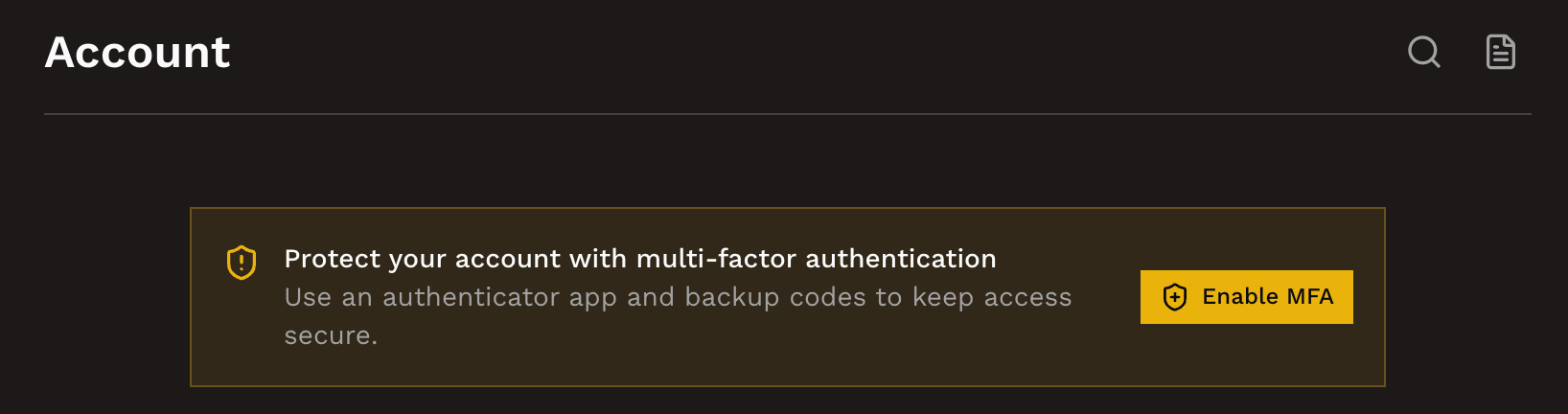
2
Start MFA setup
Select Enable MFA. Hacktron shows a QR code for your authenticator app.
3
Add Hacktron to your authenticator app
Scan the QR code with an authenticator app such as 1Password, Google
Authenticator, or Authy. If you cannot scan it, enter the setup key manually.
4
Confirm the code
Enter the 6-digit code from your authenticator app to confirm setup. After it
is verified, MFA is required the next time you sign in.
Organization-wide security controls
Organization-wide security controls are managed separately from personal
account settings.