> ## Documentation Index
> Fetch the complete documentation index at: https://hacktronai-docs-changelog-feature-backfill.mintlify.site/llms.txt
> Use this file to discover all available pages before exploring further.
# Account settings
> Manage your Hacktron profile and personal account security.
Use **Account settings** to manage your personal profile and your own Hacktron
account security. Open it from the account menu in the sidebar header.
## Profile
Your profile controls how you appear to the rest of your organization.
* **Display name** — the name shown on findings, comments, and activity.
* **Email** — the address used to sign in and receive account notifications.
* **Avatar** — the picture shown next to your name across the app.
## Multi-factor authentication (MFA)
Multi-factor authentication adds a second verification step to sign-in, so a
password alone is not enough to access your account. We strongly recommend
enabling MFA on every account.
### Enable MFA
Open the account menu in the sidebar header and select **Account settings**.
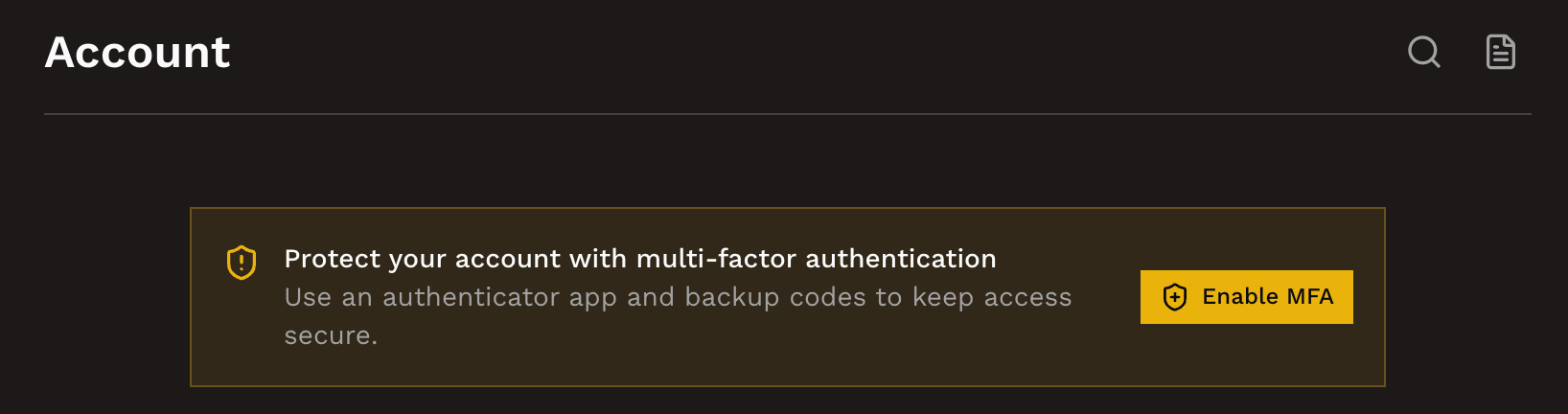 Select **Enable MFA**. Hacktron shows a QR code for your authenticator app.
Scan the QR code with an authenticator app such as 1Password, Google
Authenticator, or Authy. If you cannot scan it, enter the setup key manually.
Enter the 6-digit code from your authenticator app to confirm setup. After it
is verified, MFA is required the next time you sign in.
Organization-wide security controls are managed separately from personal
account settings.
### Save your backup codes
When you enable MFA, Hacktron generates one-time backup codes. Store them in a
safe place such as a password manager.
Backup codes are the only way to sign in if you lose access to your
authenticator app. Save them somewhere secure and do not share them.
### Disable or reset MFA
You can turn MFA off or re-run setup from **Account settings**. Disabling MFA
weakens your account security, so only do this if you are switching to a new
device or authenticator app.
Select **Enable MFA**. Hacktron shows a QR code for your authenticator app.
Scan the QR code with an authenticator app such as 1Password, Google
Authenticator, or Authy. If you cannot scan it, enter the setup key manually.
Enter the 6-digit code from your authenticator app to confirm setup. After it
is verified, MFA is required the next time you sign in.
Organization-wide security controls are managed separately from personal
account settings.
### Save your backup codes
When you enable MFA, Hacktron generates one-time backup codes. Store them in a
safe place such as a password manager.
Backup codes are the only way to sign in if you lose access to your
authenticator app. Save them somewhere secure and do not share them.
### Disable or reset MFA
You can turn MFA off or re-run setup from **Account settings**. Disabling MFA
weakens your account security, so only do this if you are switching to a new
device or authenticator app.